
Lesson 3
Read a stock
By the end of this lesson you know what every part of a company's page is telling you, and which part to open for which question.
Open a company1The header
Across the top: the company, and everything you can do to it rather than read about it.
| What | Does |
|---|---|
| ◀ ▶ | Steps to the previous or next company in the list you came from, with your place shown between them. Ctrl+↑ and Ctrl+↓ do the same thing without the mouse — the fastest way to work through a screen result. |
| The verdict badge | Uncle Stock's own recommendation, coloured by how it leans. Hover for the reasoning; click to open the score it rests on. Shown in italics when the score behind it is based on incomplete data. |
| 🔔 | Price limits and alerts for this company — lesson 7. |
| Your notes | Your own verdict, rating and notes on this company. Private to you. |
| ⤓ | Export this one company's figures to csv. Gold |
| Copy for AI | Builds a block of text — an instruction plus this company's figures — to paste into a chat AI. Gold |
On the right of the same row: sector, industry and location, the market capitalisation, and the price.
2The menu on the left
One company, several views. The menu holds the fixed ones at the top and then every metric group underneath, which is where lesson 4 lives.
- Price chart — the share price, at full height.
- Fundamentals — the default. What the company earns, owns and owes.
- Statements — balance sheet, income statement and cash flow, as reported.
- Company profile — what the business is, who runs it, who owns it.
- Interactive chart — plot metrics against each other. Silver
- News — the latest coverage.
- Views — your column sets, turned into history tables for this one company.
On a phone that whole menu sits behind a single opener at the top.
The ← → arrows above the menu take you back and forward through the metrics and views you opened, so a metric you looked at a minute ago is one step away instead of a new search. Ctrl+← and Ctrl+→ do the same from the keyboard.
3Fundamentals
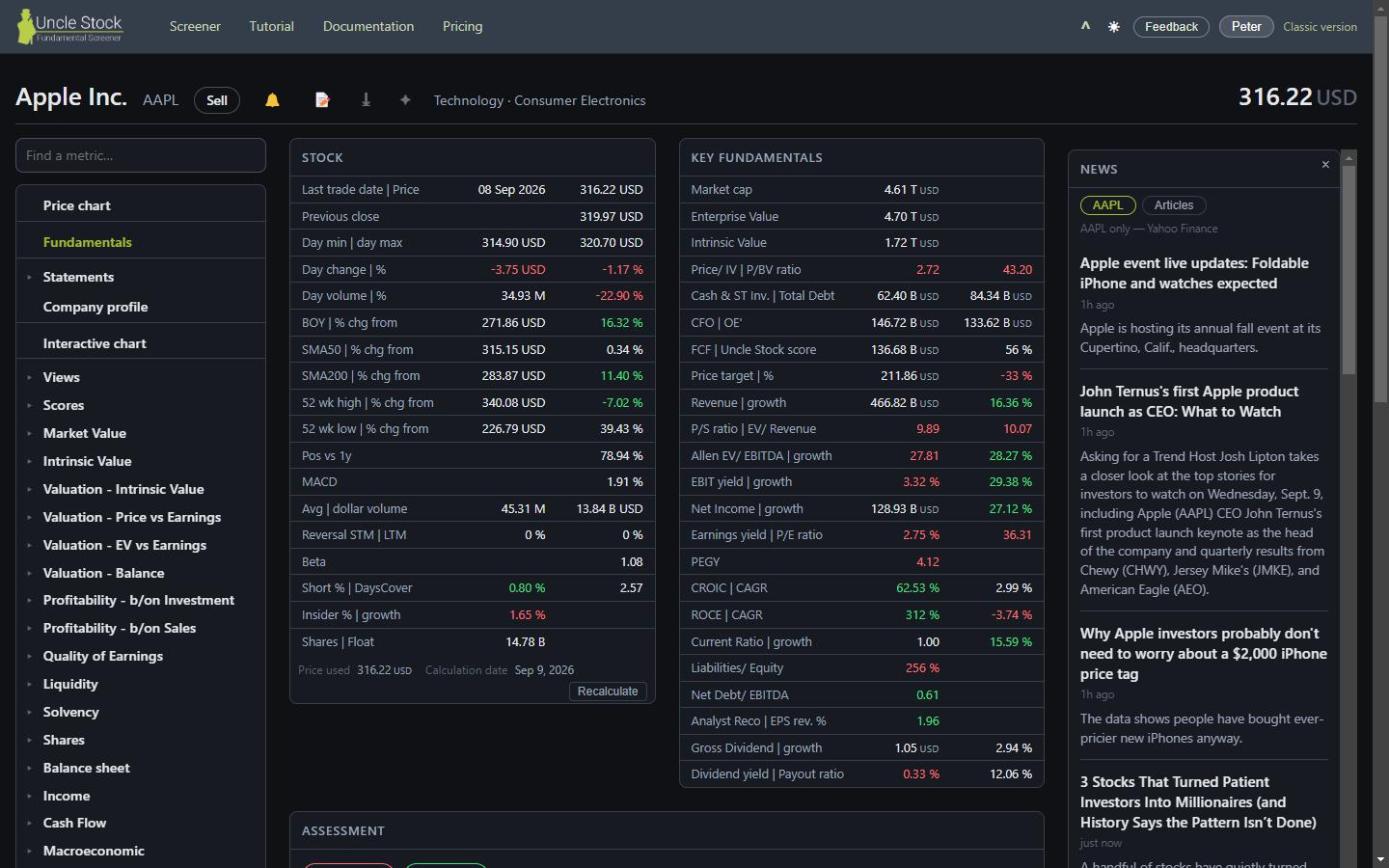 1
2
3
4
5
6
1
2
3
4
5
6
- The header and its actions
- The view menu
- The Stock block
- Key fundamentals
- The assessment
- The news column
Stock
Price, volume and the trading facts, and beside them Recalculate: it recomputes every metric against the price as it stands now. Use it when a company has moved a lot since Uncle Stock last did the sums.
Key fundamentals
The figures worth leading with. Each row carries two columns: the value, and the same value in the company's own currency — so a Japanese company can be read both in yen and in the currency you compare in.
The assessment
Category tags, what analysts recommend, and three panels: Scores (Uncle Stock's own and the well-known ones like Piotroski, Altman and Greenblatt), Solvency (can it pay its long-term debts) and Liquidity (can it pay next month's bills).
This block arrives a moment after the rest, because it is computed rather than looked up. That is deliberate: the figures above it appear immediately and the judgement follows.
The three yield tables
Income yield, Cash flow yield and Efficiency sit further down and open when you ask for them. The first two put the price against what the business produces; the third ignores the price and asks how good the business is. They are not loaded automatically because they need the company's full data, and the page above them should stay fast.
4Price chart
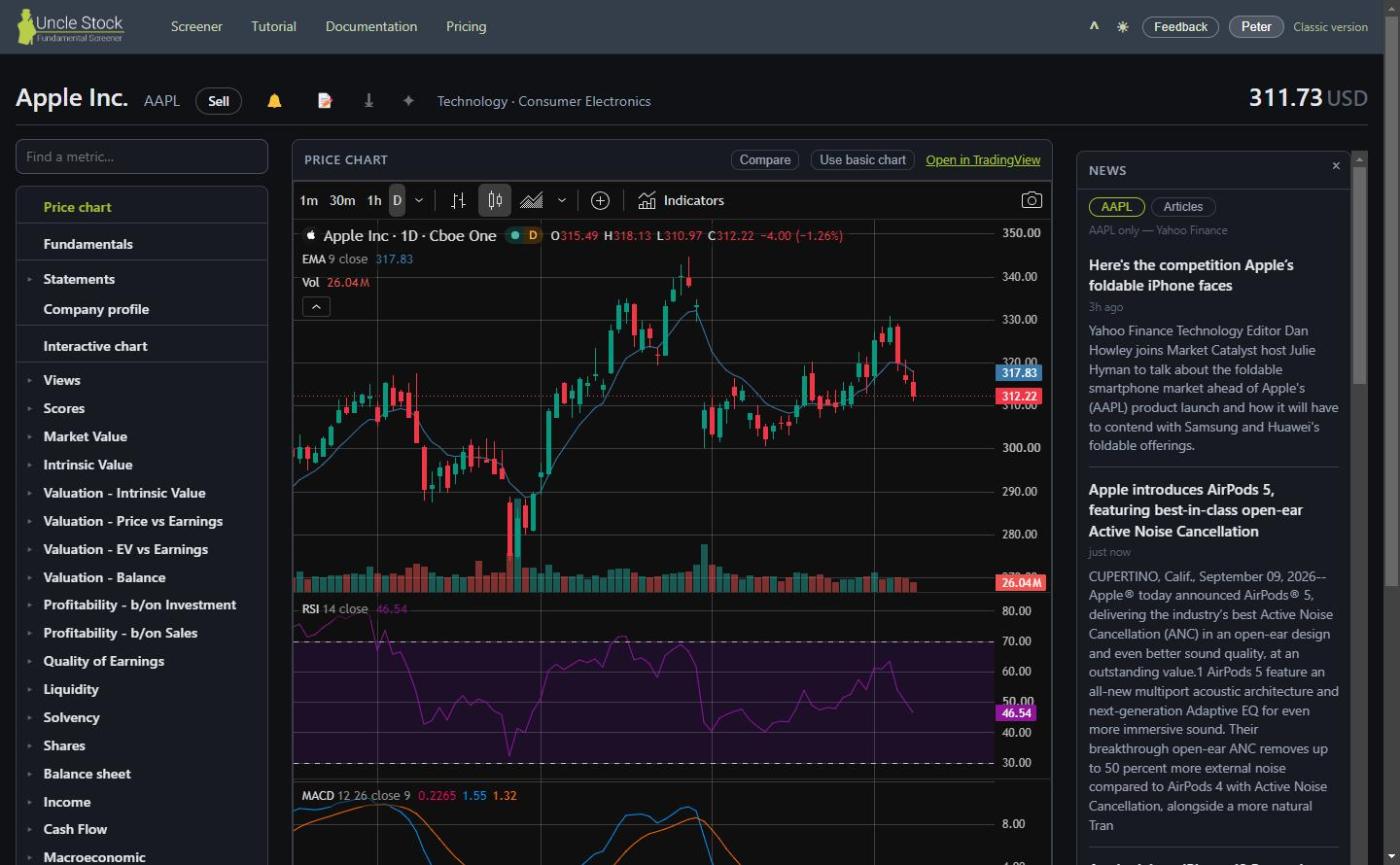
Uncle Stock picks the chart that works for the exchange the share trades on: a TradingView chart, a StockDio chart, or its own quarterly chart. Below it sits a settings bar — bar style, period or date range, indicators, time zone — and your settings are remembered.
If you hold the share, My position sits directly under the chart — what you own next to what the price has been doing. Lesson 7 covers it. Gold
Would you rather not load a third-party widget at all? Turn it off and you get Uncle Stock's own chart everywhere. It is plainer, it works for every exchange, and nothing leaves the site.
5Company profile
What the company actually does, in its own words, with the officers who run it and the facts you would otherwise go hunting for: exchange, listings, employees, shares outstanding, when the fiscal year starts, IPO date, dividend dates, when earnings are announced.
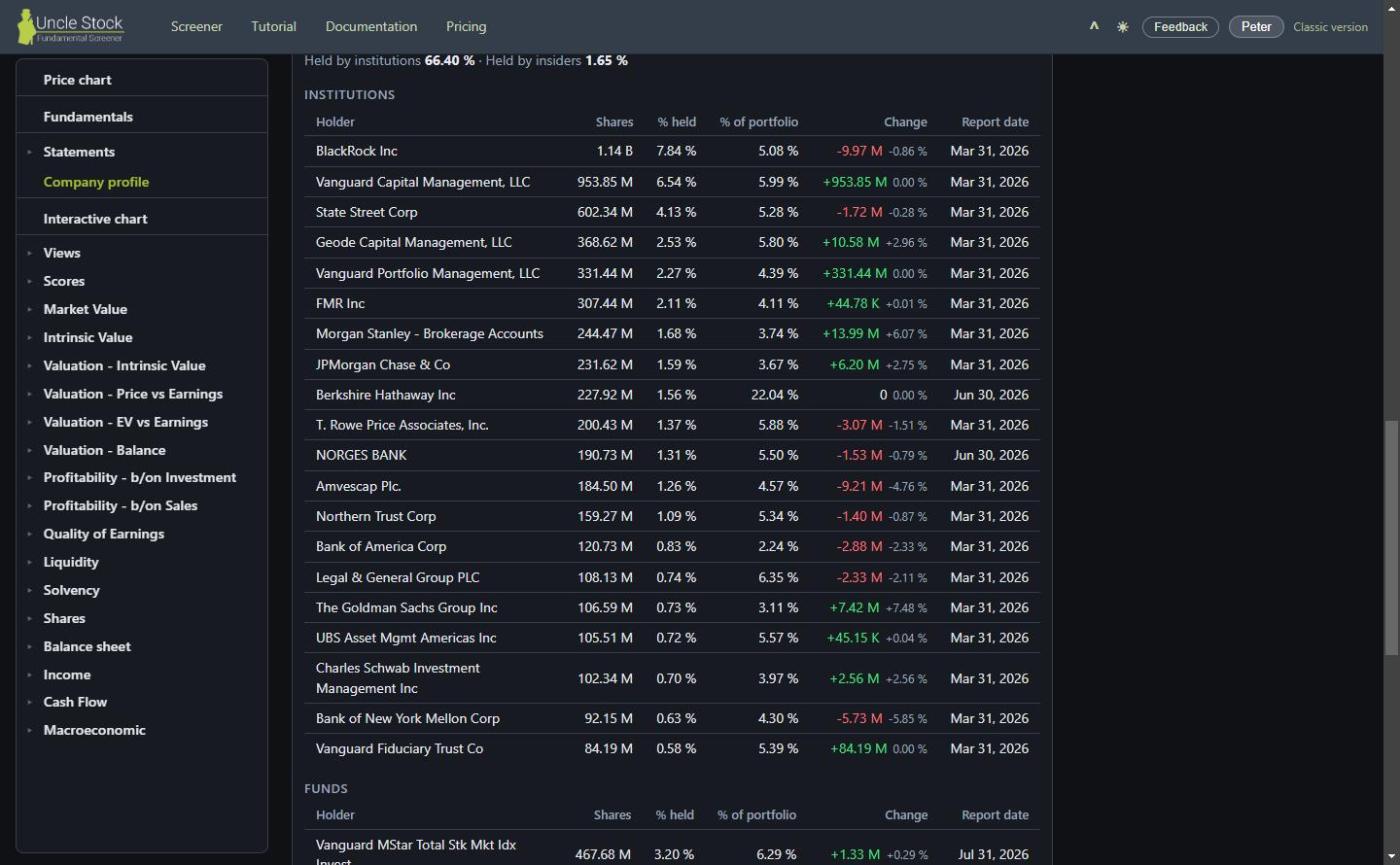
Ownership
Who holds the shares: institutions, funds, and how much sits with insiders. Insider transactions are one click further, and only fetched when you ask — that lookup is slow and costs data quota, so it is never done speculatively.
Re-import Silver
Under the import date is a quiet Reimport link. It fetches this company's source data again from the provider. Use it when a company has just reported and you do not want to wait for the next scheduled import. It runs in the background and tells you when it is done, wherever you have navigated to meanwhile.
6News
Coverage from Yahoo Finance for every company, plus Seeking Alpha articles for American listings. On a wide screen it sits as a column on the right; close it and it moves into the left menu. On a phone it is a menu entry from the start.
7Interactive chart Silver
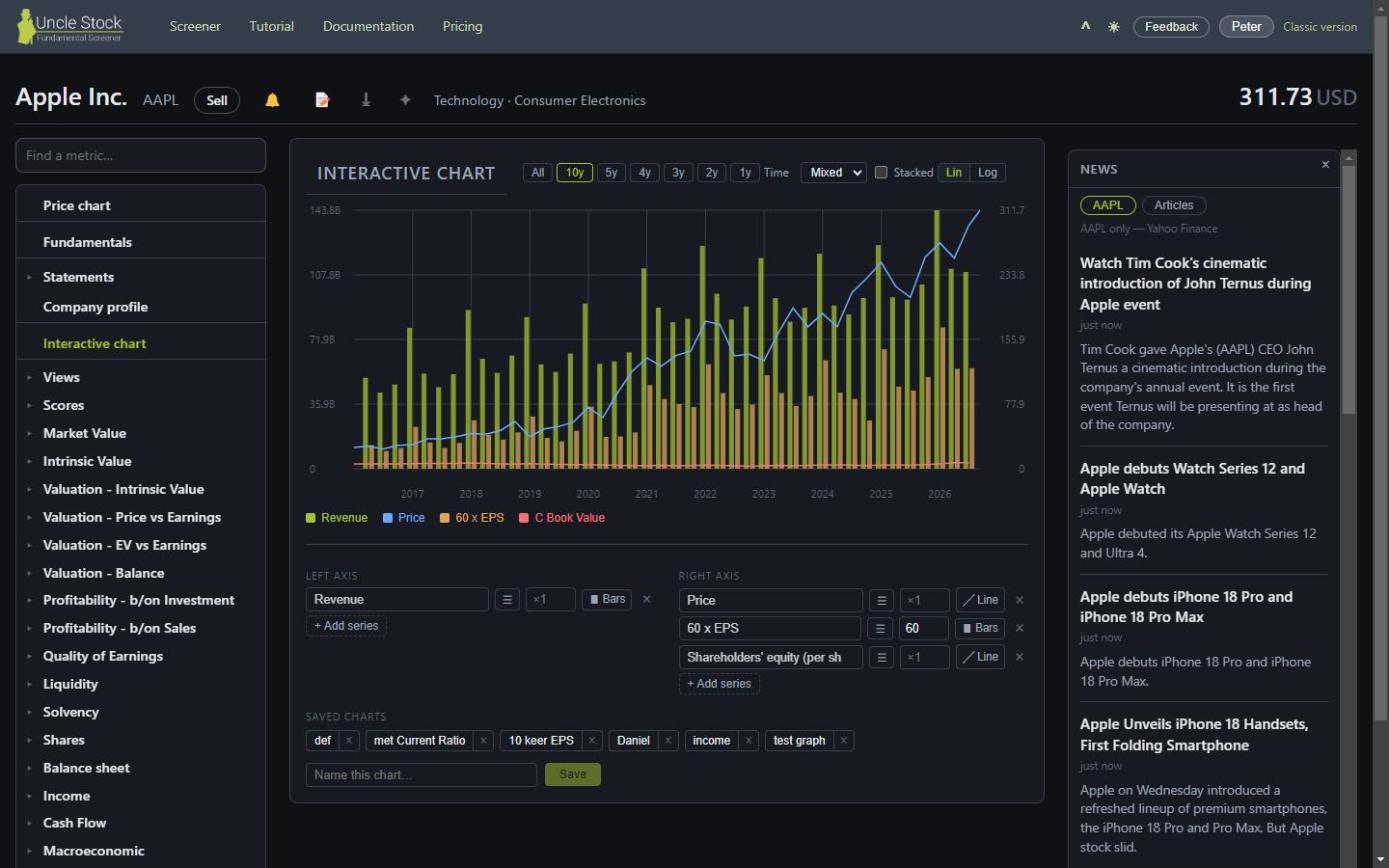
This is the free-form one. Two vertical axes, up to three series each, drawn as bars or lines: revenue against price, margin against share count, whatever comparison you are after. A slider sets how far back to go, and there are switches for yearly or mixed periods, for stacking the bars, and for a log scale.
Your setup is remembered, so the chart you built is still there next time. You can also name and save a chart: the saved ones sit in a row under the axes, and one click puts that combination back on any company. Build “revenue against margin” once and you can ask it of every business you look at afterwards.
8Taking a company somewhere else
Two ways out of the data, both in the header, both Gold:
- ⤓ csv — all metrics, the current view's metrics, the metrics your screen filtered on, or the financial results.
- Copy for AI — an editable instruction plus the company's figures as text, sized to paste into a chat. Choose the key statistics for a readable brief, or the full set when you want the model to have everything.
If your AI assistant supports connectors, Uncle Stock has an MCP integration that is better than pasting: the assistant queries Uncle Stock directly instead of working from a block of text you copied.
You have read the page. The next lesson opens a single number on it and shows you where it came from.