
Lesson 6
Save, refine, backtest
By the end of this lesson your screen has a name, you can improve it without losing the version that worked, and you know what its rules would have returned over the past years.
Open the screener1Start from what already exists
Before building from scratch, look at what is there. Screens… in the toolbar opens the browser: the screens Uncle Stock ships, the ones other users have shared, and your own.
It is a table, not a menu. Every screen shows its character, its backtest setup, and the result of that backtest — so you can sort the whole collection by what it returned per year and read down from the top. Filter by character, click a row, and the screen opens as a tab.
The famous screens — Graham, Piotroski, Greenblatt, Slater, Levermann — are the best teaching material in the app. Open one, click Refine query, and read how it is put together.

2Save your screen Silver
With a result on the table, Save query asks for a name, a description, a short tag and a focus. From then on it is yours, and it appears in Screens… under your own queries.
If you tick the option to share it, other users see it. Write the name and description in clear English and say what the screen is actually looking for — a shared screen nobody can understand gets set back to private.
3Refine without losing the original
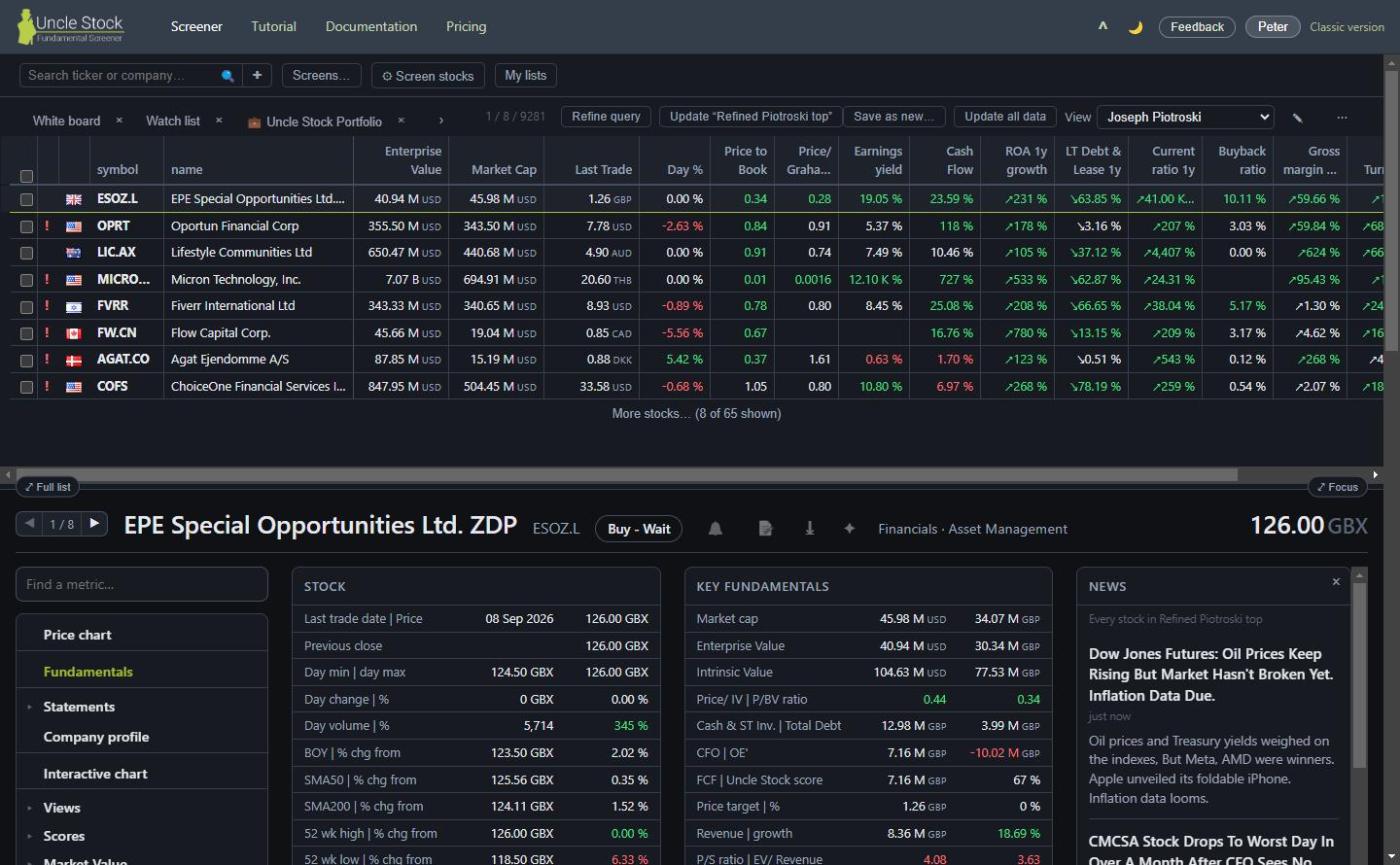
Refine query above a result opens that screen back up in the builder, with its criteria filled in. Change something, search again, and the tab is renamed <name> *. The asterisk means: this differs from what is saved.
On one of your own saved screens the toolbar carries two buttons rather than the single Save query you get on a fresh search. They are always there — what the asterisk tells you is that there is now something worth pressing one of them for.
-
Update "<name>" overwrites the screen you started from. The dialog opens already filled in, so it is one click. Change the name here and you rename the screen — it does not fork.
-
Save as new… keeps the original and makes a second screen. The description and settings come along as a starting point, but the name is blank and waiting. This is the one to use when you want both variants.
Refining a screen that is not yours — a shared or a famous one — only offers Save as new…. You can build on someone's work; you cannot overwrite it.
A screen that ranks on several metrics at once was built in the classic client, and the new builder only shows the first of them. Such a screen still runs correctly here — but if you refine it and save, it keeps only that first ranking metric. Refine multi-metric screens in the classic client until the new builder offers them.
4Backtest Silver
A backtest asks a plain question: if I had run these rules every year, bought what came out and held on until the next rebalance, where would I be now?
Reading someone else's
Screens that have already been tested carry a chip above the result reading Backtest … %/yr. Click the number for the whole report. No waiting, nothing to run — it is stored.
Running your own
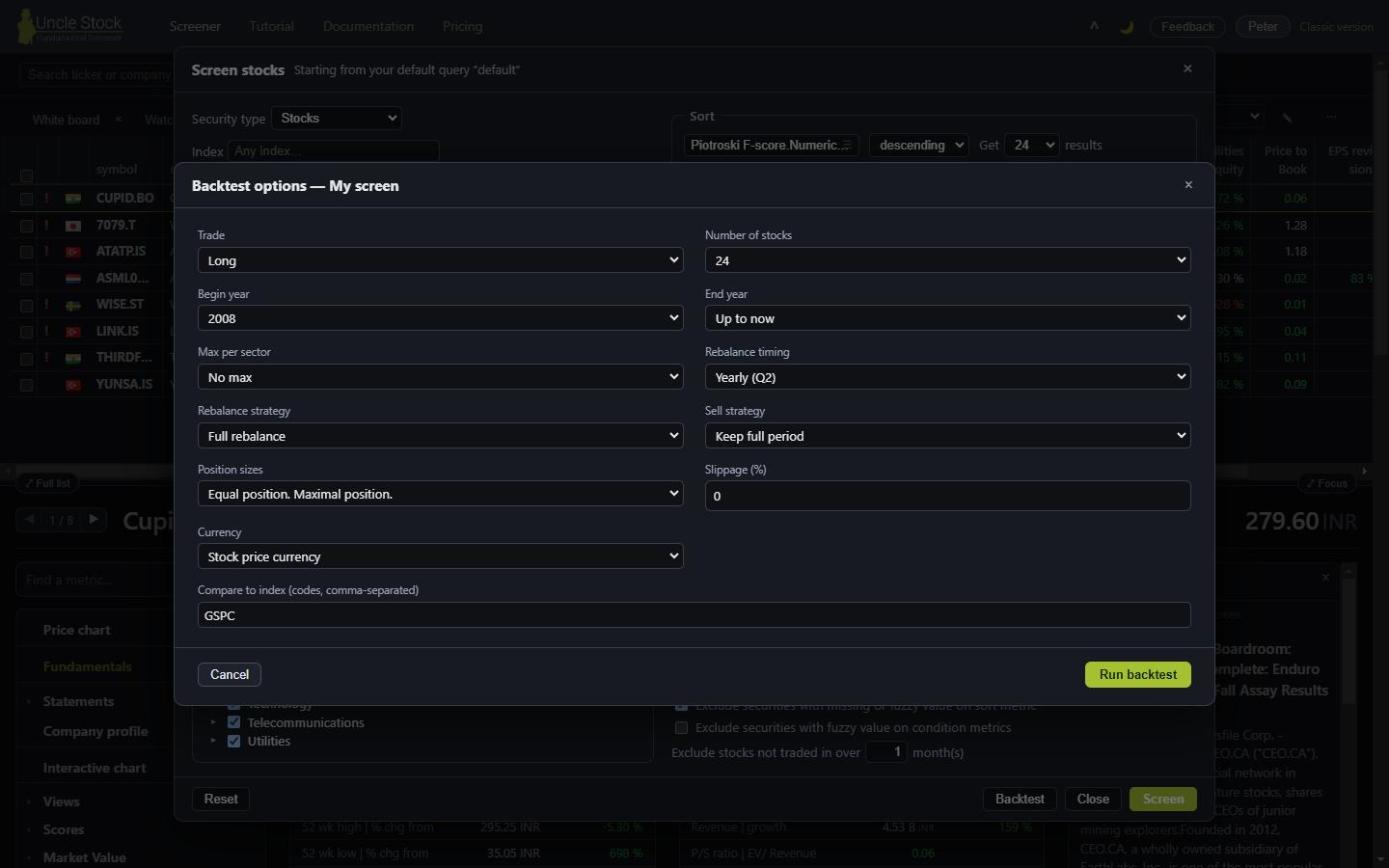
On a screen you built, the Backtest button opens the options: the period, how often to rebalance, how many companies to hold, what to compare against, and how much to assume you lose to trading costs. Quarterly rebalancing and the rebalancing strategies need Gold.
The engine runs on the server and the result comes back when it is ready. Your settings are remembered, so the next test starts where the last one left off.
5Reading the report
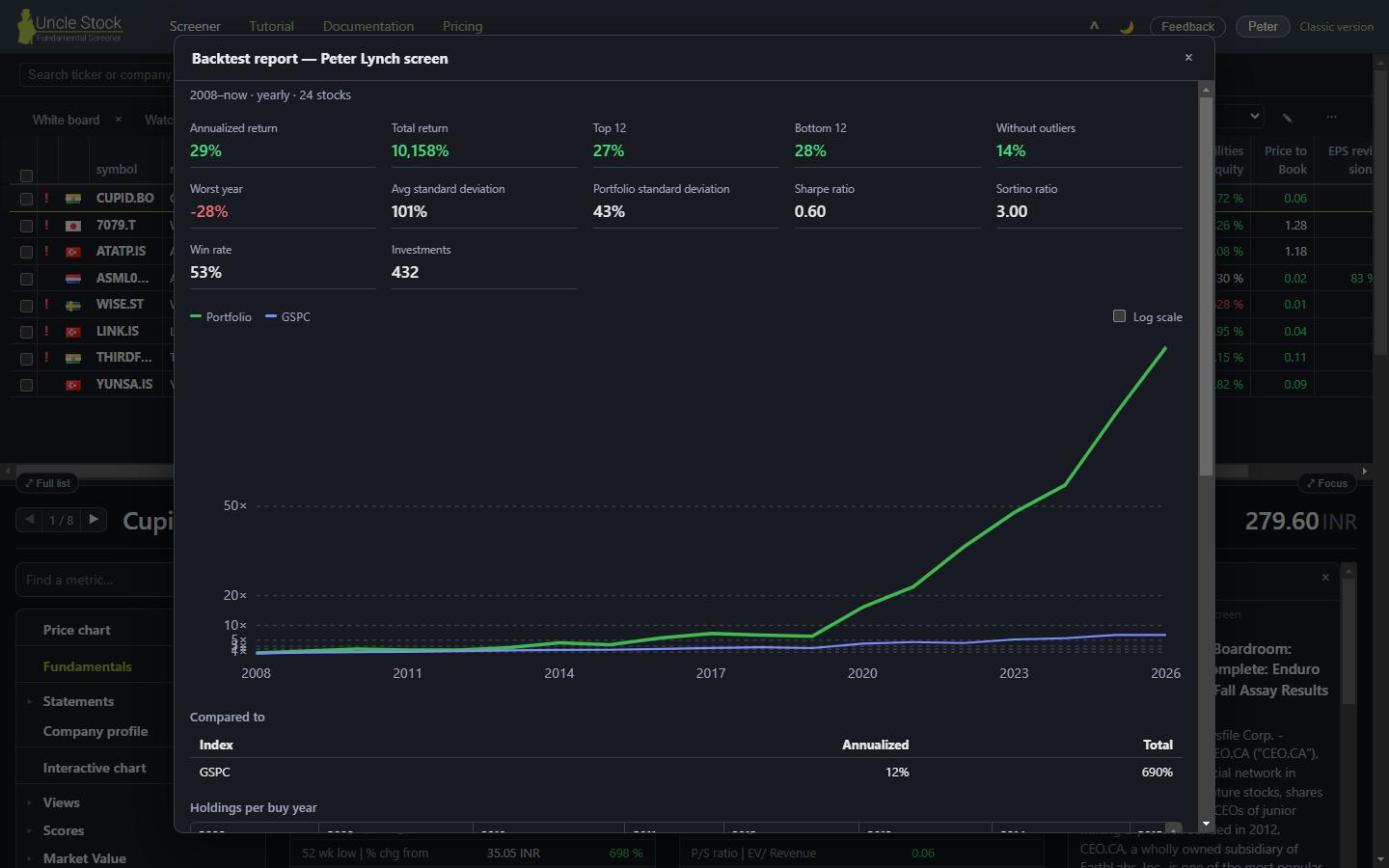
The report has five parts, and they answer different questions:
- The summary — what it returned per year, and the numbers that describe the ride.
- The growth chart — your portfolio against the benchmark over time, with a log scale for long runs.
- The benchmark table — the same comparison in figures.
- The holdings — one column per buy year, the companies it actually bought. This is where a strategy stops being abstract.
- The per-period metrics — how each rebalance did on its own.
6What a backtest is not
Two honest limits, because a number this satisfying deserves them:
It measures the past, it does not promise the future. And the more you tune a screen until its backtest looks good, the more of that number is you fitting the rules to what already happened. A screen with a reason behind it and a mediocre backtest usually travels better than one with a great backtest and no reason.
Metrics marked ⚠ in the builder are left out. If your screen leans on one of those, the backtest is not testing the screen you wrote.
You can find companies and judge rules. The last thing left is following the ones you actually bought.